
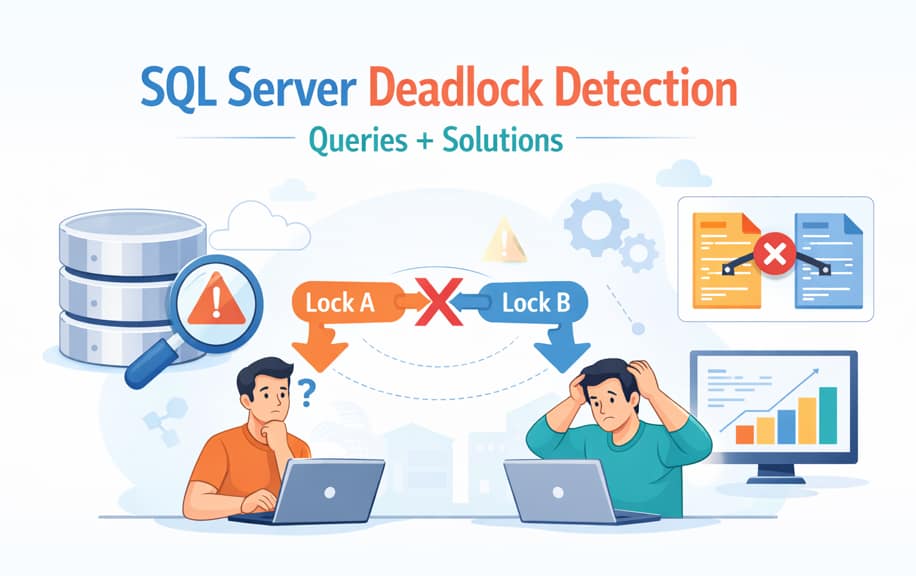
Deadlocks are one of the most common performance problems in SQL Server databases, especially in applications with high concurrency. When multiple transactions try to access the same resources simultaneously, they may end up waiting for each other indefinitely. This situation is known as a deadlock.
Example Deadlock Scenario
Consider the following example.
Transaction 1
BEGIN TRANSACTION
UPDATE Orders
SET Status = 'Processing'
WHERE OrderID = 1
Transaction 2
BEGIN TRANSACTION
UPDATE Customers
SET City = 'London'
WHERE CustomerID = 5
If both transactions request resources held by each other, SQL Server will detect the deadlock and terminate one transaction to resolve it.
SQL Server automatically detects deadlocks and resolves them by terminating one of the transactions, known as the deadlock victim. However, frequent deadlocks can significantly impact application performance and database reliability.
In this guide, you will learn:
- What a SQL Server deadlock is
- How to detect deadlocks using SQL queries
- Useful DMV queries for deadlock analysis
- How to capture deadlock graphs using Extended Events
- Best practices to prevent deadlocks in SQL Server
What is a Deadlock in SQL Server?
A deadlock occurs when two or more transactions block each other by holding locks on resources that the other transaction needs.
For example:
- Transaction A locks Table1 and requests Table2
- Transaction B locks Table2 and requests Table1
Both transactions wait for each other, creating a circular dependency.
To resolve this situation, SQL Server selects one transaction as the deadlock victim and rolls it back so the other transaction can continue.
Deadlocks are common in systems with:
- Multiple concurrent users
- Long-running transactions
- Poor indexing strategies
- Inconsistent table access order
How to Detect Deadlocks in SQL Server
SQL Server provides several ways to detect deadlocks:
- Dynamic Management Views (DMVs)
- SQL Server Extended Events
- SQL Server Profiler
- Deadlock Graph analysis
- SQL Server error logs
Among these methods, DMV queries and Extended Events are the most widely used in production environments.
Method 1: Detect Blocking Sessions Using sys.dm_exec_requests
A common way to identify possible deadlocks is by checking blocking sessions.
SELECT
    session_id,
    blocking_session_id,
    wait_type,
    wait_time,
    wait_resource
FROM sys.dm_exec_requests
WHERE blocking_session_id <> 0;
Explanation
- session_id – The current session executing the query
- blocking_session_id – Session causing the blocking
- wait_type – Type of wait occurring
- wait_resource – Resource that is being locked
If multiple sessions are blocking each other in a circular chain, it may indicate a potential deadlock situation.
Method 2: Identify Locks Using sys.dm_tran_locks
You can also monitor active locks using the sys.dm_tran_locks DMV.
SELECT
    request_session_id AS SessionID,
    resource_type,
    resource_database_id,
    request_mode,
    request_status
FROM sys.dm_tran_locks;
What This Query Shows
This query provides information about:
- Which sessions currently hold locks
- The type of lock (Shared, Exclusive, Update)
- Lock status
Analyzing lock information helps identify transactions that might lead to deadlocks.
Method 3: Detect Deadlocks Using Extended Events
SQL Server automatically captures deadlock information using the system_health extended events session.
The following query extracts deadlock graphs from this session.
SELECT
    XEventData.XEvent.value('(data/value)[1]', 'varchar(max)') AS DeadlockGraph
FROM (
    SELECT CAST(target_data AS XML) AS TargetData
    FROM sys.dm_xe_session_targets st
    JOIN sys.dm_xe_sessions s
        ON s.address = st.event_session_address
    WHERE s.name = 'system_health'
) AS Data
CROSS APPLY TargetData.nodes('RingBufferTarget/event') AS XEventData(XEvent)
WHERE XEventData.XEvent.value('@name', 'varchar(4000)') = 'xml_deadlock_report';
Why Extended Events Are Recommended
Extended Events provide:
- Detailed deadlock graphs
- Information about conflicting queries
- Transaction details
- Resource locking information
This makes them one of the best tools for deadlock analysis in SQL Server.
Method 4: Monitor Deadlocks Using SQL Server Profiler
Another approach to detect deadlocks is using SQL Server Profiler.
Steps:
- Open SQL Server Profiler
- Start a new trace
- Select the Deadlock Graph event
- Run your application workload
- Capture and analyze deadlock graphs
The deadlock graph visually displays:
- Processes involved in the deadlock
- Locked resources
- The deadlock victim
Example Deadlock Scenario
Consider the following example.
Transaction 1
BEGIN TRANSACTION
UPDATE Orders
SET Status = 'Processing'
WHERE OrderID = 1
Transaction 2
BEGIN TRANSACTION
UPDATE Customers
SET City = 'London'
WHERE CustomerID = 5
If both transactions request resources held by each other, SQL Server will detect the deadlock and terminate one transaction to resolve it.
Best Practices to Prevent Deadlocks
Preventing deadlocks is essential for maintaining database performance.
1. Access Tables in a Consistent Order
Always access tables in the same order across all transactions.
Correct approach:
Transaction A → Table1 → Table2
Transaction B → Table1 → Table2
Incorrect approach:
Transaction A → Table1 → Table2
Transaction B → Table2 → Table1
2. Keep Transactions Short
Long-running transactions hold locks for a longer period, increasing the chances of deadlocks.
Try to keep transactions short and efficient.
3. Use Proper Indexing
Indexes reduce the number of rows scanned and minimize locking.
Example:
CREATE INDEX IX_Orders_OrderID
ON Orders(OrderID);
4. Use Snapshot Isolation
Enabling READ_COMMITTED_SNAPSHOT allows SQL Server to use row versioning instead of locking.
This reduces blocking and potential deadlocks.
5. Avoid User Interaction Inside Transactions
Transactions should execute quickly without waiting for:
- User input
- Network calls
- External services
Real-World Scenarios Where Deadlocks Occur
Deadlocks frequently occur in high-traffic systems such as:
- E-commerce platforms processing orders and inventory updates
- Banking systems handling concurrent financial transactions
- ERP systems updating shared business data
- Healthcare systems managing patient records
Regular monitoring and proper indexing strategies can significantly reduce deadlocks.
Frequently Asked Questions
What is a deadlock victim in SQL Server?
A deadlock victim is the transaction selected by SQL Server to be terminated in order to resolve a deadlock.
How does SQL Server detect deadlocks?
SQL Server uses an internal deadlock detection mechanism that periodically checks for circular locking dependencies.
How can I monitor deadlocks in production?
The best methods include:
- Extended Events
- SQL Server Profiler
- Dynamic Management Views
How can deadlocks be prevented?
Deadlocks can be minimized by:
- Using consistent table access order
- Keeping transactions short
- Creating proper indexes
- Using snapshot isolation
Conclusion
Deadlocks are a common challenge in high-concurrency SQL Server environments. Understanding how to detect and analyze deadlocks is essential for maintaining database performance and application stability.
Key takeaways:
- Use DMV queries to monitor blocking sessions
- Capture deadlock graphs using Extended Events
- Maintain consistent table access order
- Optimize queries and indexing strategies
By following these practices, developers and database administrators can significantly reduce deadlocks and improve overall system performance.
More Important Articles
- SQL Server Performance Tuning: Complete Guide with Real Examples
- Handling Large File Uploads in ASP.NET Core: Best Practices, Performance, and Security
- ASP.NET Core Swagger Not Showing – Complete Solution Guide
- Why IQueryable Is Dangerous in APIs (Real-World Risks, Examples, and Best Practices)
- Add Serilog Without Breaking Dependency Injection in ASP.NET Core
- ASP.NET Core API Performance: Proven Techniques to Build Fast, Scalable APIs